

If you use Palo Alto firewalls, typically you manage them in one of two ways. You either log into each firewall directly and manage it on its own, or you use Panorama, which lets you manage multiple firewalls from a single place.
Most of us were used to this setup, myself included. If you had a handful of firewalls, logging into each one individually is okay. But once you started scaling up to tens or hundreds of firewalls across different sites, Panorama became the go-to option. It let you centrally manage the configurations and monitor logs centrally instead of touching every single firewall by hand.
Strata Cloud Manager (SCM)
However, Palo Alto released yet another option called Strata Cloud Manager (SCM) in 2023, which is hosted by Palo Alto themselves, unlike Panorama, which you manage internally. The idea at a very high level is that the firewalls connect to Strata Cloud Manager (outbound only) through the Internet, and you log into SCM to manage the configurations and push them to the firewalls.
From my experience and speaking to other people, Palo Alto is pushing SCM to customers and adding new features to it. So the unspoken assumption is that any new features may be introduced to SCM first, and it's a first-class citizen.
Licensing
Based on the official doc, SCM comes with two tiers, Essentials and Pro.
- Essentials (free with NGFW or Prisma Access purchase) - configuration management, best practices reporting, and basic health insights and alerts. Doesn't include Strata Logging Service by default, though you can add it separately.
- Essentials + Strata Logging Service - adds things like rule hit count, log viewer, Command Center, and Activity Insights, once you attach SLS to your Essentials license.
- Pro - everything above, plus AI-powered features like Policy Analyzer, Policy Optimizer, Config Cleanup, ADEM, and Software Upgrade Planner. Also includes Strata Logging Service with a year of retention and unlimited storage.
For most people just managing firewalls and pushing config day to day, Essentials covers you fine. If you want proper log retention, dashboards, or any of the AI-driven posture and policy analysis features, you'll need Pro, or at least Essentials with Strata Logging Service added on.
Migrating to SCM
As of writing this post, there's no official tool available from Palo Alto to migrate an existing Panorama or standalone firewall configuration into SCM's folder based structure.
Even if one existed, I suspect it wouldn't be straightforward. Your existing Panorama setup is built around device groups and templates, which don't map one-to-one onto SCM's folders, snippets, and variables. A tool could probably move over your objects, address groups, and security policies without much trouble, but the actual structure, deciding what belongs at a shared level versus a specific folder, which fields should become variables, and where snippets make more sense than folder inheritance, is not something a migration tool can figure out for you. So even with a tool in hand, you'd likely still end up rebuilding a fair bit of it by hand to get a structure that actually makes sense going forward.
Onboarding and Zero Touch Provisioning
To onboard firewalls to SCM, you will need to activate SCM first and add your new firewalls to the Customer Service Portal as normal. Once that's done, they will show up on SCM for you to add and manage.
SCM also supports zero-touch provisioning (ZTP). When you buy a new firewall, the first port, Ethernet1/1, is automatically configured for ZTP. So if you have already registered the firewalls in SCM, even before you unbox them, you can add them to SCM. Assuming you already have some configs in SCM, when the new firewall boots up, you can connect Ethernet1/1 to the Internet, and it automatically connects to SCM over the Internet and gets the config, including the management IP.
SCM User Interface - Is It Any Good?
If you are managing any on-prem firewalls, you would mostly work on the Configuration > NGFW and Prisma Access tab. This is where you make almost all the configuration changes, as shown below.
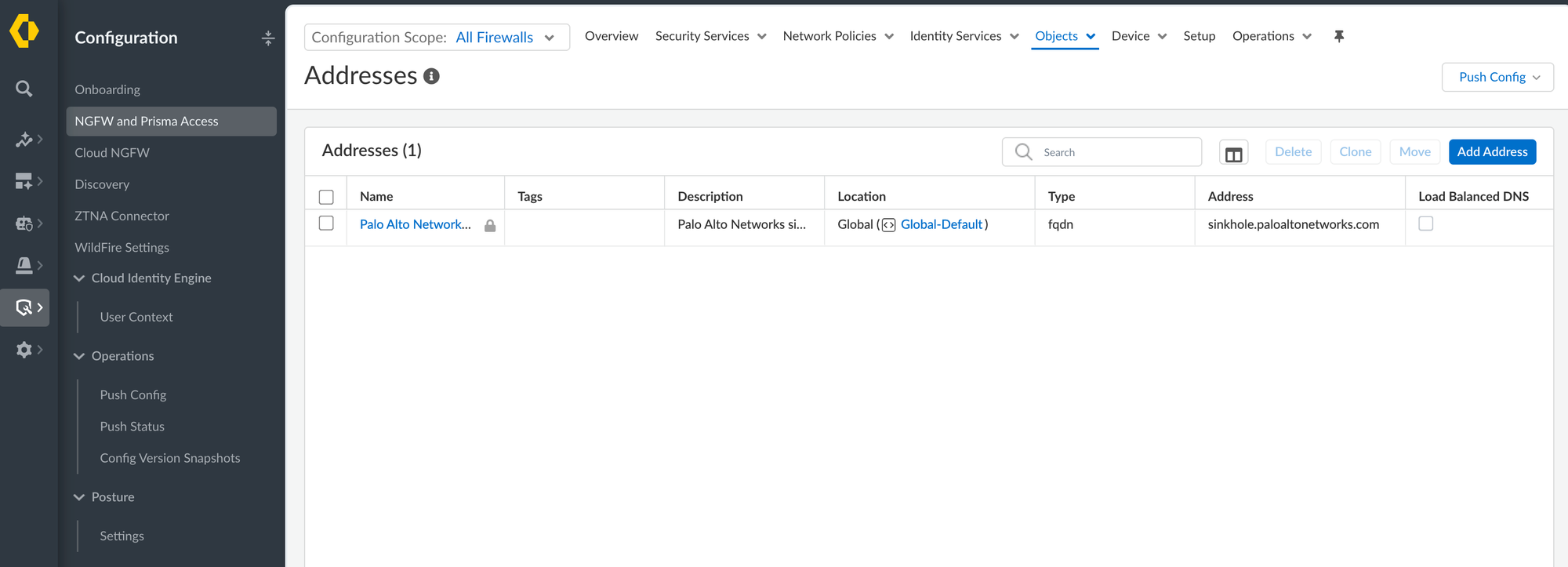
One thing I personally like about Panorama is that the way you make configuration changes is exactly identical between the firewall and Panorama. If you know how to configure a firewall, you already know how to use Panorama. For example, on the firewall, if you want to configure an address object, you go to Objects > Addresses and add it there. On Panorama, it is the exact same path, Objects > Addresses, and the process of adding the object is identical. The only real difference is the device group and template structure in Panorama, but the actual configuration screens and workflow stay the same.
However, with SCM, things are all over the place. If you are using it for the first time, you will be banging your head, though eventually you get used to it. For example, on the firewall or Panorama, the URL Filtering profile is under Objects, but in SCM, it is under Security Services.
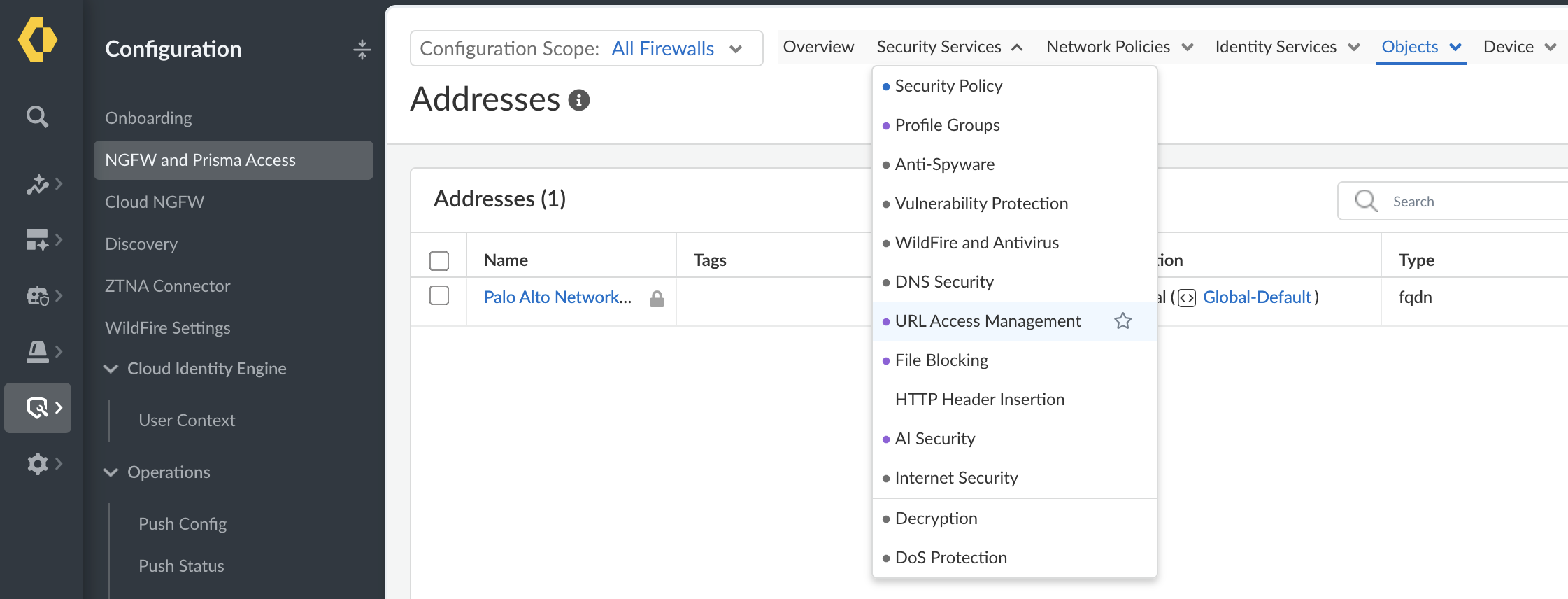
If you need to configure interfaces, zones, or GlobalProtect, these live under the Device section in SCM. On the firewall or Panorama, this is under Network instead. So keep this in mind, it takes a while to get used to it.
Does SCM Have Device Groups and Templates?
No, SCM does not have the concept of device groups or templates like Panorama.

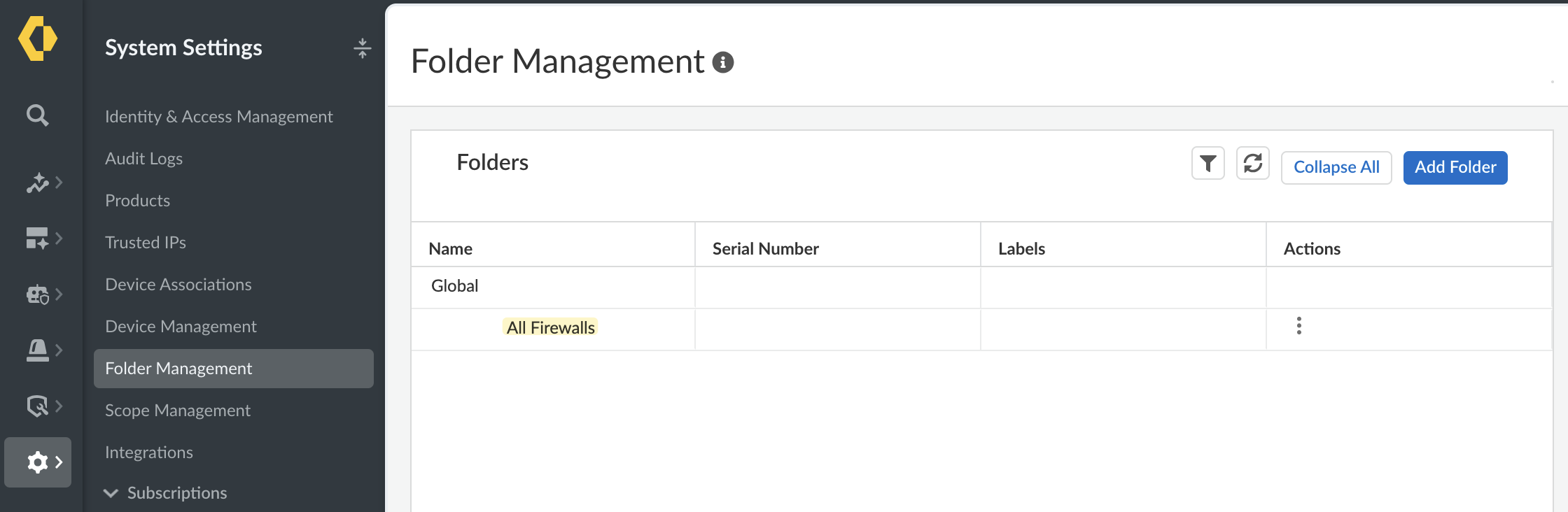
Instead, it uses Folders. It comes with a predefined folder called "All Firewalls" which sits at the top, and you can create sub folders under it to organize your firewalls the way you want. A folder in SCM effectively combines what used to be device groups and templates in Panorama into a single concept, so rather than managing policy inheritance through device groups and network or device settings inheritance through templates separately, you get one folder hierarchy that manages both.
Folder Structure in SCM
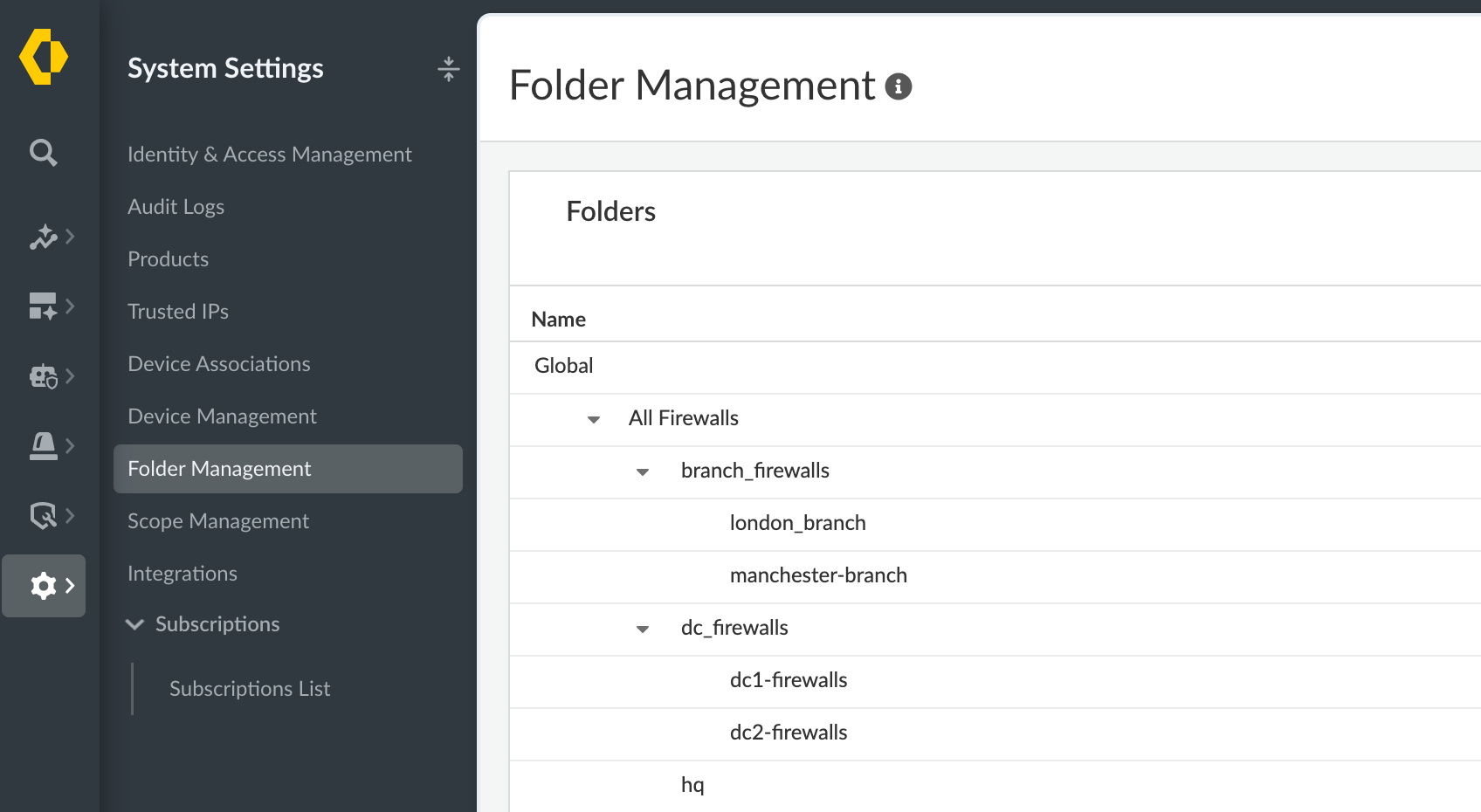
The way it works is, you can create a folder hierarchy to match your setup, based on however you want to logically group your firewalls, by region, by function, by site type, or any other way that makes sense for how you manage things. This is entirely up to you, SCM just gives you the all-firewalls folder as the top-level starting point, and you build the rest of the structure underneath it.
all-firewalls (pre-defined)
├── hq
├── branch-firewalls
│   ├── london-branch
│   └── manchester-branch
└── dc-firewalls
    ├── dc1-firewalls
└── dc2-firewallsYou then place your firewalls into the relevant folder, and any configuration you push at a higher folder level, like All-Firewalls, gets inherited by everything underneath it. This works the same way the template and device group hierarchy works in Panorama, just presented as folders instead.
You would typically create a separate folder for each firewall, or for each HA pair, and I will explain why later. So instead of placing all your branch firewalls directly inside the branch-firewalls folder, you create one sub folder per branch site, and add each firewall (or HA pair) into its own leaf folder.
all-firewalls (pre-defined)
└── branch-firewalls
    ├── london-branch
    └── manchester-branch
But as you would expect, if you create an object in branch-firewalls or all-firewalls, it gets inherited by the child folder, london-branch, for example.
There are a few things you would want to create at the top level, all-firewalls, such as address objects, services, application groups, URL filtering profiles, and so on, because most likely you will reference them later in your policies. You don't have to do this though, you can also create them at the subfolder level. For example, if an address object related to the DC firewalls is never going to be used in the office firewalls, then it makes more sense to create that object under dc-firewalls instead of all-firewalls.
For example, using the full hierarchy shown earlier. At the all-firewalls level, you would create things that are common across your entire estate, regardless of whether it's a branch, HQ, or DC firewall. Things like an address object (or address group), or a log-forwarding profile that every firewall should use. Since every folder sits underneath all-firewalls, these get inherited everywhere.
Zones and interfaces depend on how standardised your setup is. HQ might have its own unique interface layout, so those can be created directly at the hq folder. Branch offices are often built the same way across sites though, a trust zone on ethernet1/2 and an untrust zone on ethernet1/1, for example, so it makes more sense to create these at the branch-firewalls level instead of repeating them under london-branch and manchester-branch. The same applies to dc-firewalls, if both DC firewalls share the same zone and interface naming, you can create that once at the dc-firewalls level rather than under dc1-firewalls and dc2-firewalls separately.
Now say you want a rule that allows all branch firewalls to reach a monitoring server, but not HQ or the DC firewalls. You would create the security policy at the branch-firewalls level, so it gets inherited by both london-branch and manchester-branch while hq and dc-firewalls remain unaffected.
Similarly, if DC firewalls share some common DC specific objects, like a backup-servers address group used in both data centers, you would create that at the dc-firewalls level instead of repeating it under each DC folder.
SCM Variables
Let's say we need to configure the DNS server for each firewall, but we want to use one DNS server for office firewalls and a different one for DC firewalls. As shown in the screenshot below, this DNS setting sits inside Device Setup, alongside other fields like the update server, proxy settings, and TCP timeouts.
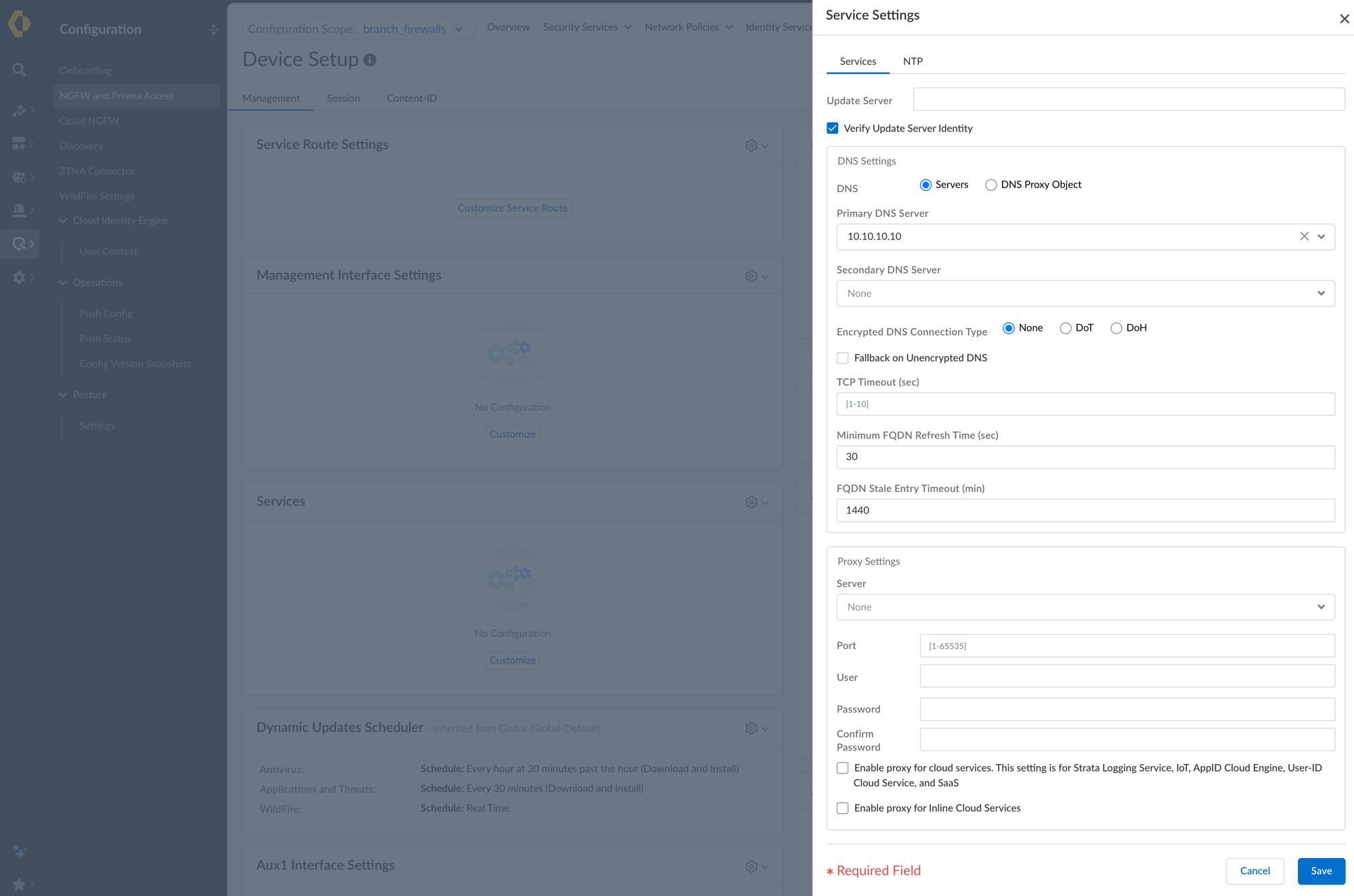
Of course, you could go and create this once under branch-firewalls with the DNS server applicable to branch offices, then do it again under dc-firewalls with the DC specific server. The downside is that every other field in that same section, like the update server or proxy settings, would need to be repeated at both levels as well, even if they are identical, just because you had to create the whole Device Setup config twice to set two different DNS values.
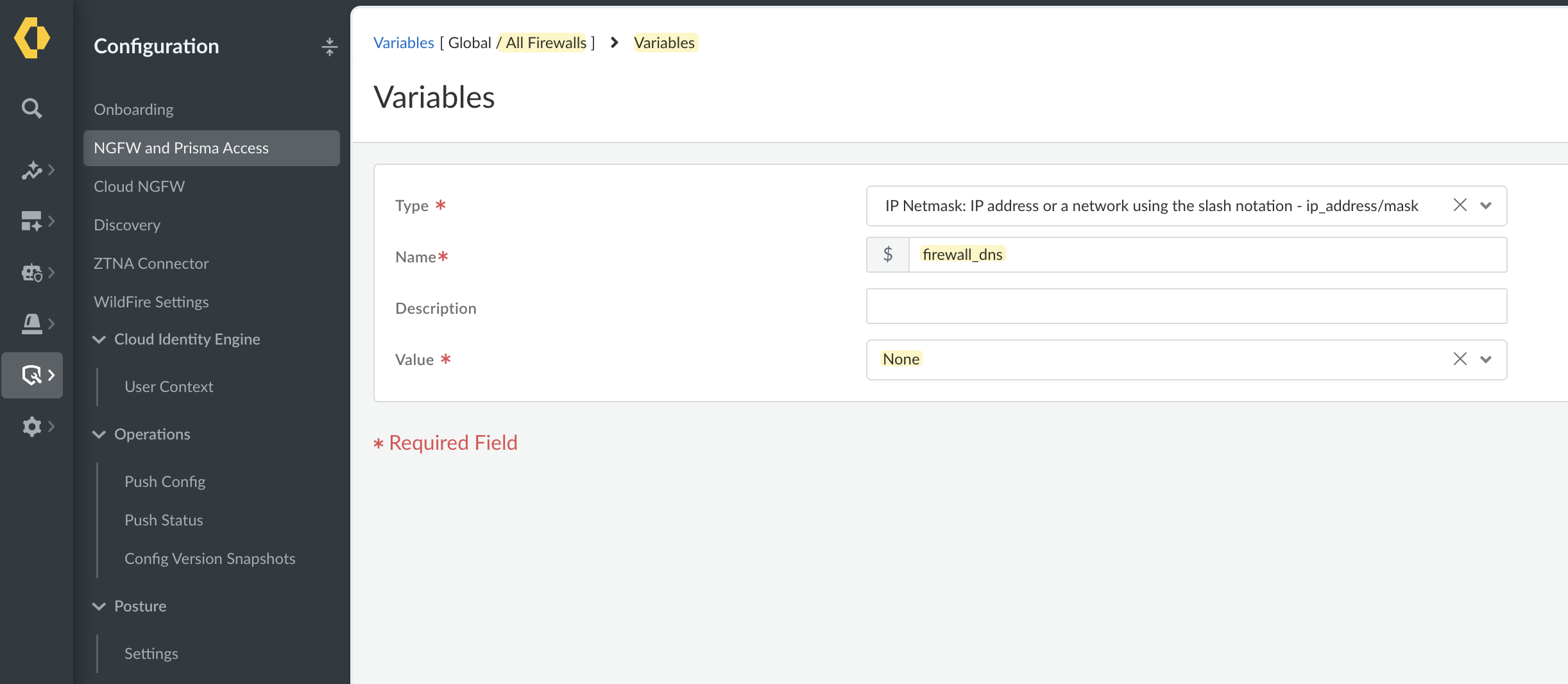
What you can do instead is use a variable. In SCM, a variable is just a placeholder you create once, give it a name, and then reference that name in your configuration instead of typing the actual value directly. The name itself can be anything you want, I'm using firewall-dns as the name in this example.
You create the variable, assign it a value of None at the all-firewalls level, and then reference the variable name in the DNS field instead of hardcoding an IP. You can also assign an actual value here if you want, but using None at this level makes it clear that every child folder is expected to override it with its own value.
Then, at the branch-firewalls level, you override this variable with the branch DNS server, and at the dc-firewalls level, you override it with the DC DNS server.
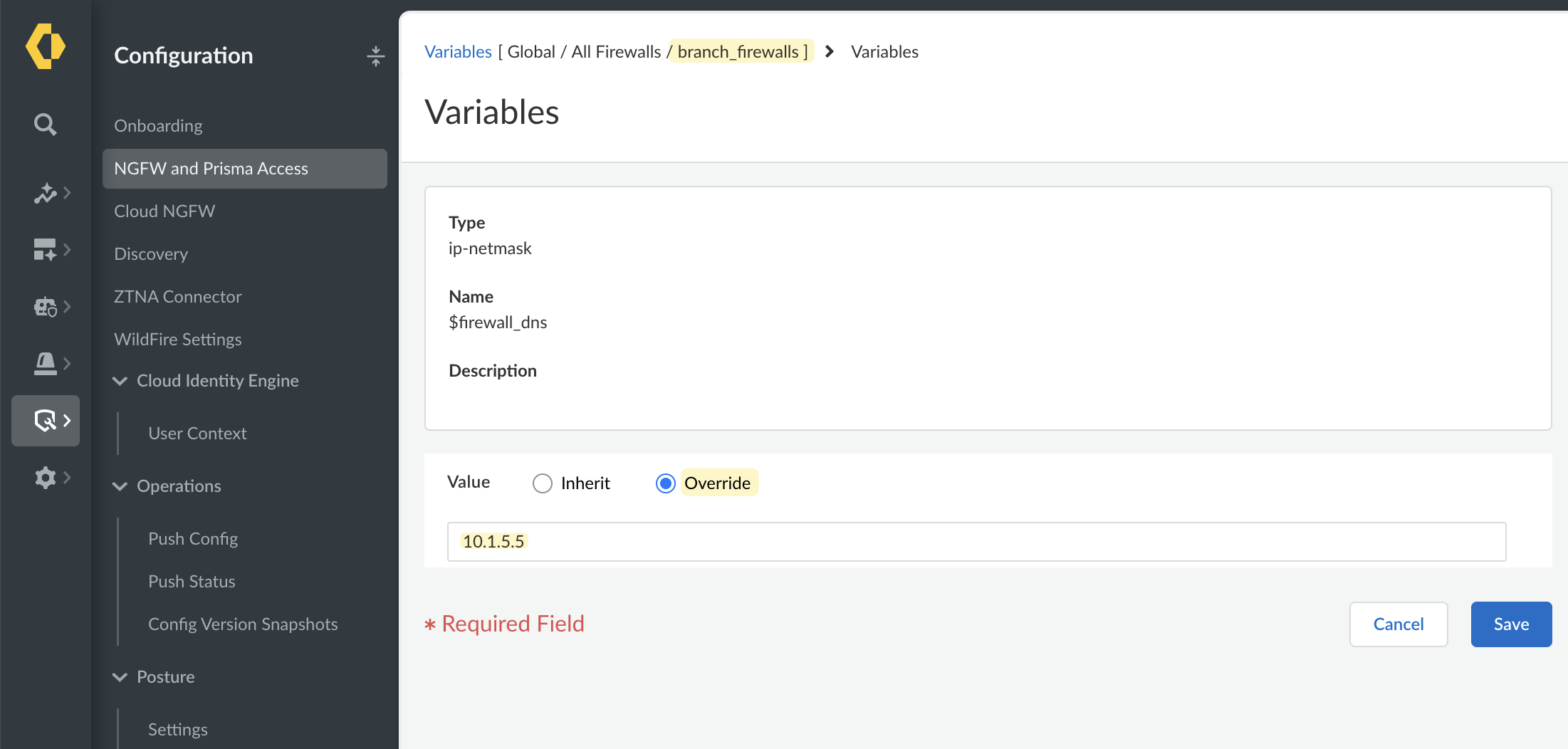
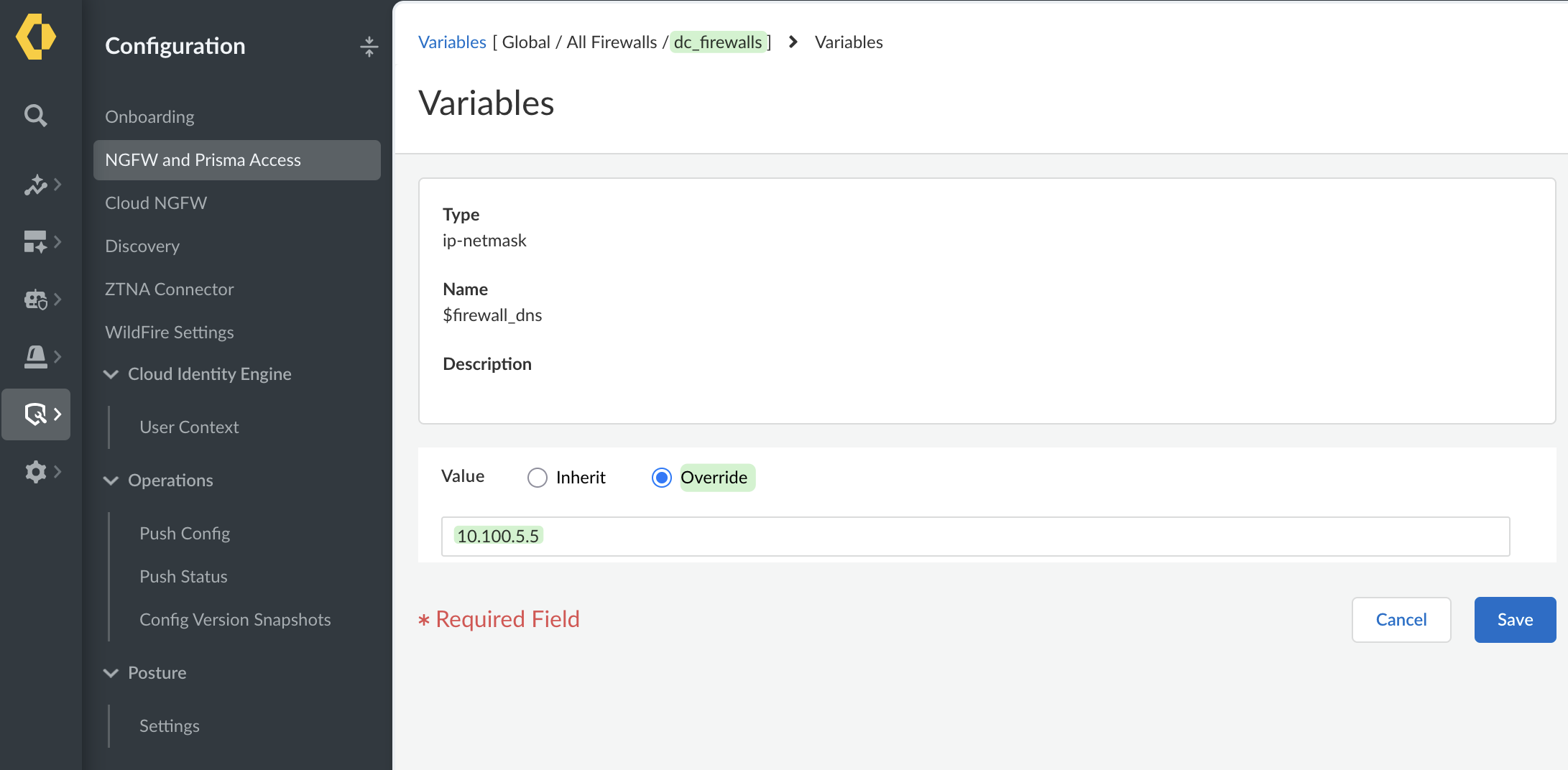
This way, you only create the Device Setup configuration once, at all-firewalls, referencing the firewall-dns variable in the DNS field instead of a hardcoded IP.
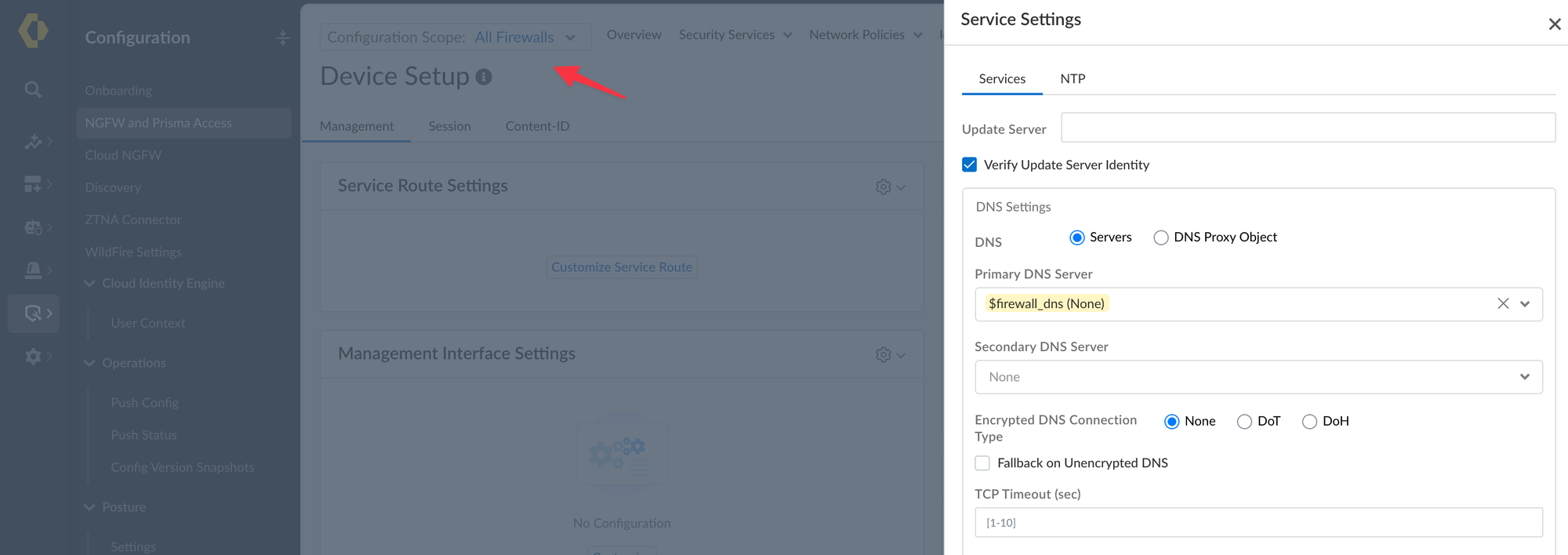
Every folder underneath then just overrides the value of that one variable, and SCM pushes the right DNS server to the right firewalls without you having to duplicate the entire configuration block.
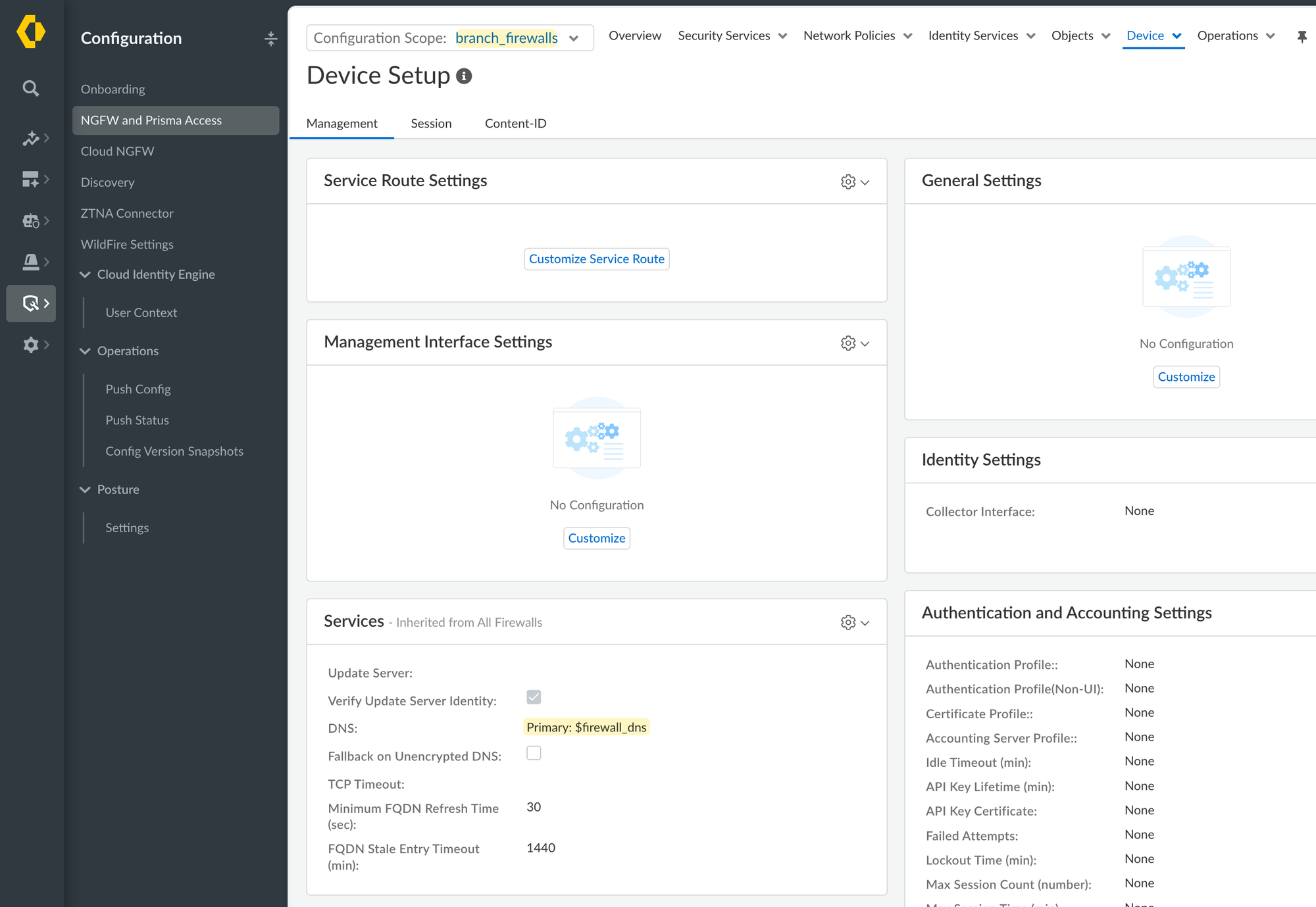
You can also use variables at the individual firewall level, which is especially useful with HA. Since each firewall in an HA pair needs its own unique management IP and default gateway, you can't just set these at a folder level, because that would apply the same values to both firewalls in the pair.
Instead, you create the Management Interface Settings once at the all-firewalls level (or any folder that suits you), using a variable for the management IP and another for the default gateway. Then, rather than overriding these at a folder, you override them at the individual firewall level, once for the active firewall and once for the passive firewall in the pair. This way, both firewalls in a folder inherit the same base configuration, but each one ends up with its own correct management IP and gateway, without you having to build the Management Interface Settings separately for every single firewall.
Goal Is To Not Repeat The Same Config Twice
Personally, I aim to avoid duplicating configuration wherever possible in SCM. If I find myself creating the same object, profile, or setting under two different folders, that's usually a sign I should either move it up to a common parent folder, or use a variable so I only build the config once and just override the value where needed. This keeps the whole structure cleaner and makes changes easier down the line, since you are not hunting through multiple folders to update the same thing in more than one place.
But it's not always that easy. For example, with the folder structure we have, let's say I want to block all users from accessing Facebook. Since this is something that should apply to every firewall, the obvious place to create this security policy is at the all-firewalls level. But this immediately creates a problem, because all-firewalls is also the parent of every other folder, including dc-firewalls. Your DC firewalls likely don't have any users browsing the internet through them at all, so pushing a rule about blocking Facebook to dc-firewalls doesn't make sense and just adds unnecessary policy clutter to firewalls that will never even see that kind of traffic.
So as of now, I need to create it twice, once at hq and once at branch-firewalls, just to avoid pushing it to dc-firewalls as well. Though we could perhaps reorganize the folders in a way where hq and branch-firewalls sit under a common parent, like all-offices. This way, the Facebook block rule can be created once at all-offices and gets inherited by both hq and branch-firewalls, while dc-firewalls sits completely outside of that branch and never sees the rule at all. So we will end up with something like this:
all-firewalls (pre-defined)
├── all-offices
│   ├── hq
│   └── branch-firewalls
│       ├── london-branch
│       └── manchester-branch
└── dc-firewalls
    ├── dc1-firewalls
    └── dc2-firewalls
Rule Order Between Parent and Child Folders
Now, say I create a security policy at all-firewalls to block Facebook, and then someone creates another rule at the hq level to allow Facebook. Since SCM evaluates security policies top-down, and rules from a parent folder get placed above the rules of the child folder in the resulting rulebase, the block rule at all-firewalls takes precedence. The allow rule created at hq sits further down the list and never actually gets hit, because traffic already matched the block rule higher up and got denied before it even reached hq's rules.
Pre-Rules and Post-Rules
When you create a security policy, SCM asks you to specify whether it should be a pre-rule or a post-rule, and this option is available at every folder level.
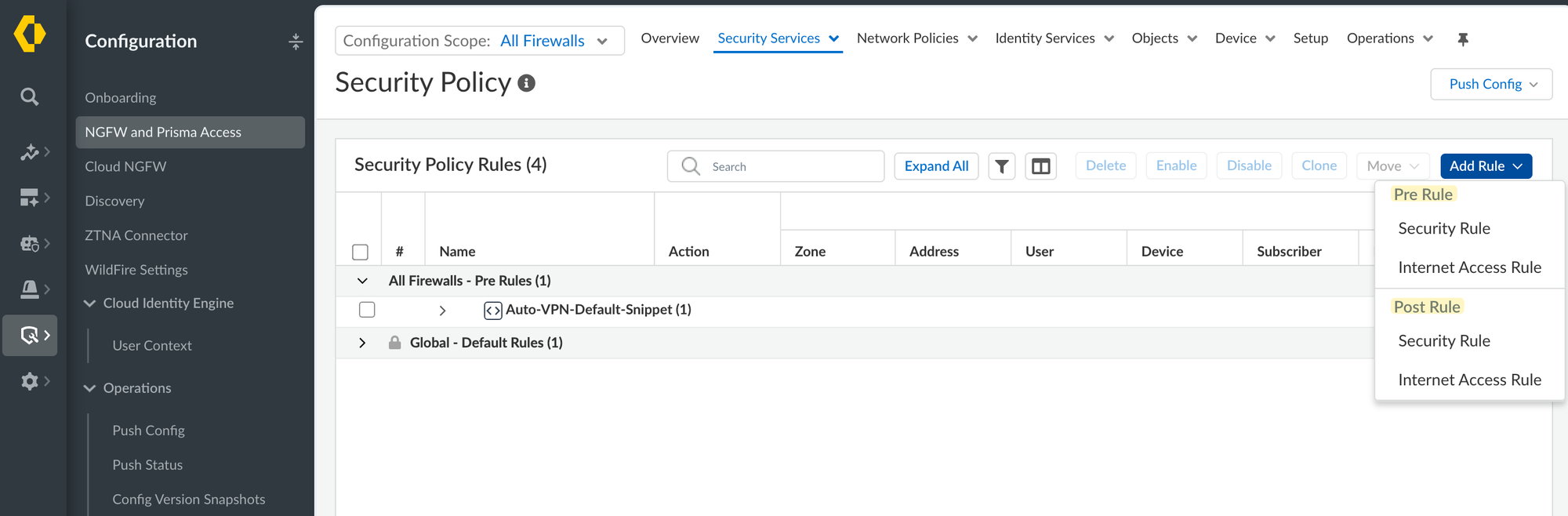
With pre-rules, the top level always takes precedence. So if you created the Facebook block rule as a pre-rule at all-firewalls folder, it doesn't matter if someone later creates an allow rule at the hq level, the pre-rule still gets evaluated first and blocks the traffic before it ever reaches hq's rules.
But if you were to create that same Facebook block rule at all-firewalls as a post-rule instead, the behaviour changes. Now, a pre-rule created at hq or branch-firewalls gets evaluated first, so if someone creates an allow rule for Facebook at the hq level as a pre-rule, that allow rule would match before traffic ever reaches your post-rule at all-firewalls.
So if you were to create a post-rule at the child folder level, say london_branch, the actual evaluation order looks like this.
1. all-firewalls   > Pre-Rule
2. london_branch   > Pre-Rule
3. london_branch   > Post-Rule
4. all-firewalls   > Post-Rule
So it's not just top-level pre-rule then straight to post-rule; london_branch's own post-rule gets evaluated before the parent's post-rule at all-firewalls. So if you want to have a deny rule, for example, deny Facebook, that only kicks in after any allow rules in the child folders have had a chance to match, you can create it as a post-rule at the parent folder. This way, any specific allow rule created at london_branch or manchester_branch gets evaluated first, and your deny rule at all-firewalls only catches the traffic that wasn't already matched by something more specific underneath it.
Folder Overrides
We touched on overrides briefly when we looked at variables, but let's look at another example here. In SCM, rather than editing the actual physical interface directly, you create an interface object and then assign a physical interface to it. For example, here we assume all of our branch offices share the same pattern, so we can create an interface object called $primary_wan in the branch_firewalls folder, and assign it to ethernet1/1 by default, as shown below.
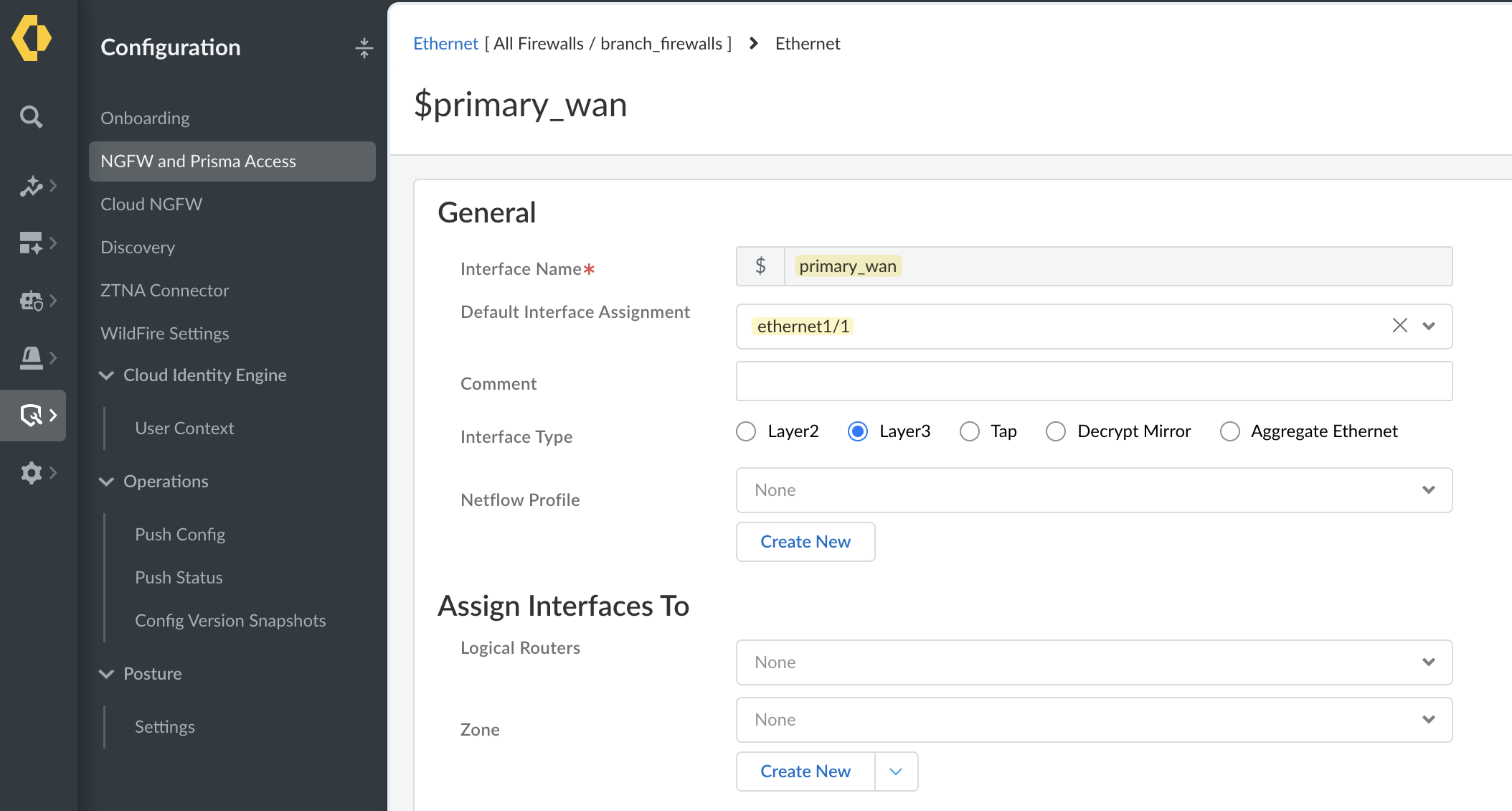
But for whatever reason, if one of the branch offices needs to use a different physical interface for its WAN connection, you don't need to create a whole new interface object just for that site. Instead, you can override the value at the london_branch level.
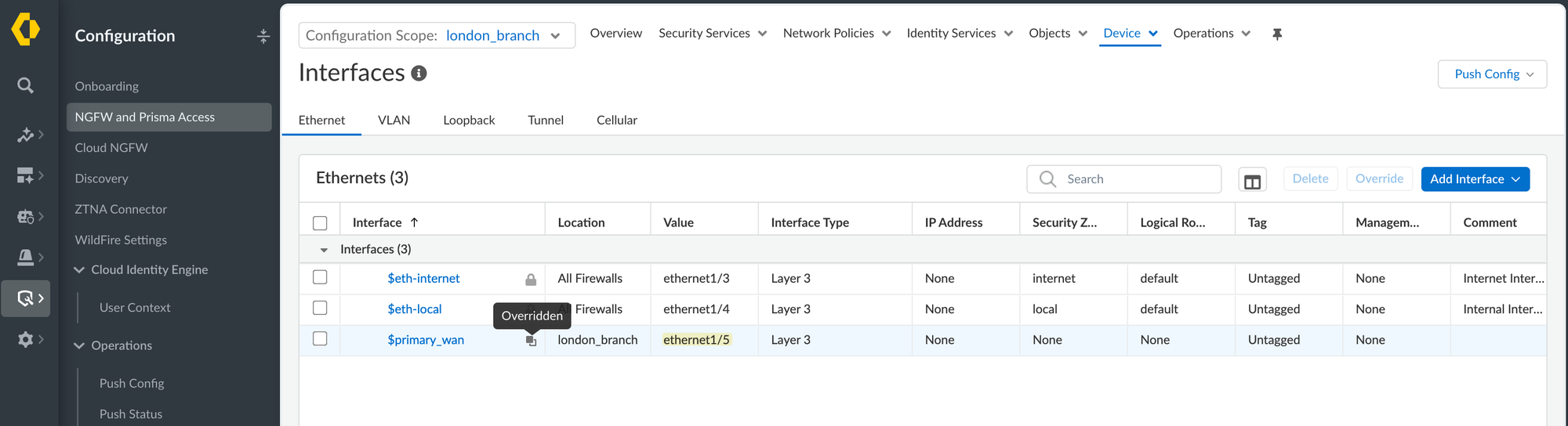
As shown in the second screenshot, the $primary_wan interface still exists and applies from branch_firewalls, but its value has been overridden locally to ethernet1/5 for london_branch specifically, while every other branch office continues using ethernet1/1 as originally defined at the parent folder.
You can also use folder variables for things like the IP address and default gateway on this interface, which we covered earlier. So for the WAN IP, you would create a variable at the branch_firewalls level with a value of None, and then at each child folder, like london_branch and manchester_branch, you assign the actual IP address. This way, the interface object itself, along with its IP configuration, only needs to be created once at branch_firewalls, and each site just overrides the variable with its own value instead of duplicating the whole interface config again.
So even if one of the child folders needs to use DHCP for its IP address instead of a static one, for example, you should be able to override that specific setting at the child folder level and change it to DHCP.
There's also something worth noting once you've overridden a value at a child folder. Say you go back to the parent folder, branch_firewalls in this case, and enable something like LLDP on the $primary_wan interface object. Normally, this would cascade down to every child folder inheriting from it. But for london_branch, since we already overrode the interface at that level, this change to LLDP at the parent does not cascade down to london_branch anymore. Once you override an object in a child folder, that child effectively breaks away from the parent for that object, so any further changes made at the parent level need to be manually replicated at the child level as well if you want them to apply there too.
Overriding The Default Virtual Router
Here's another example of the same override behaviour, from a different angle. SCM comes with a predefined virtual router called default at the all-firewalls level. If you go into branch_firewalls and try to assign the $primary_wan interface to this default virtual router, you get a warning: "Saving the interface will override and remove the inherited object(s) from the parent folder on branch_firewalls."
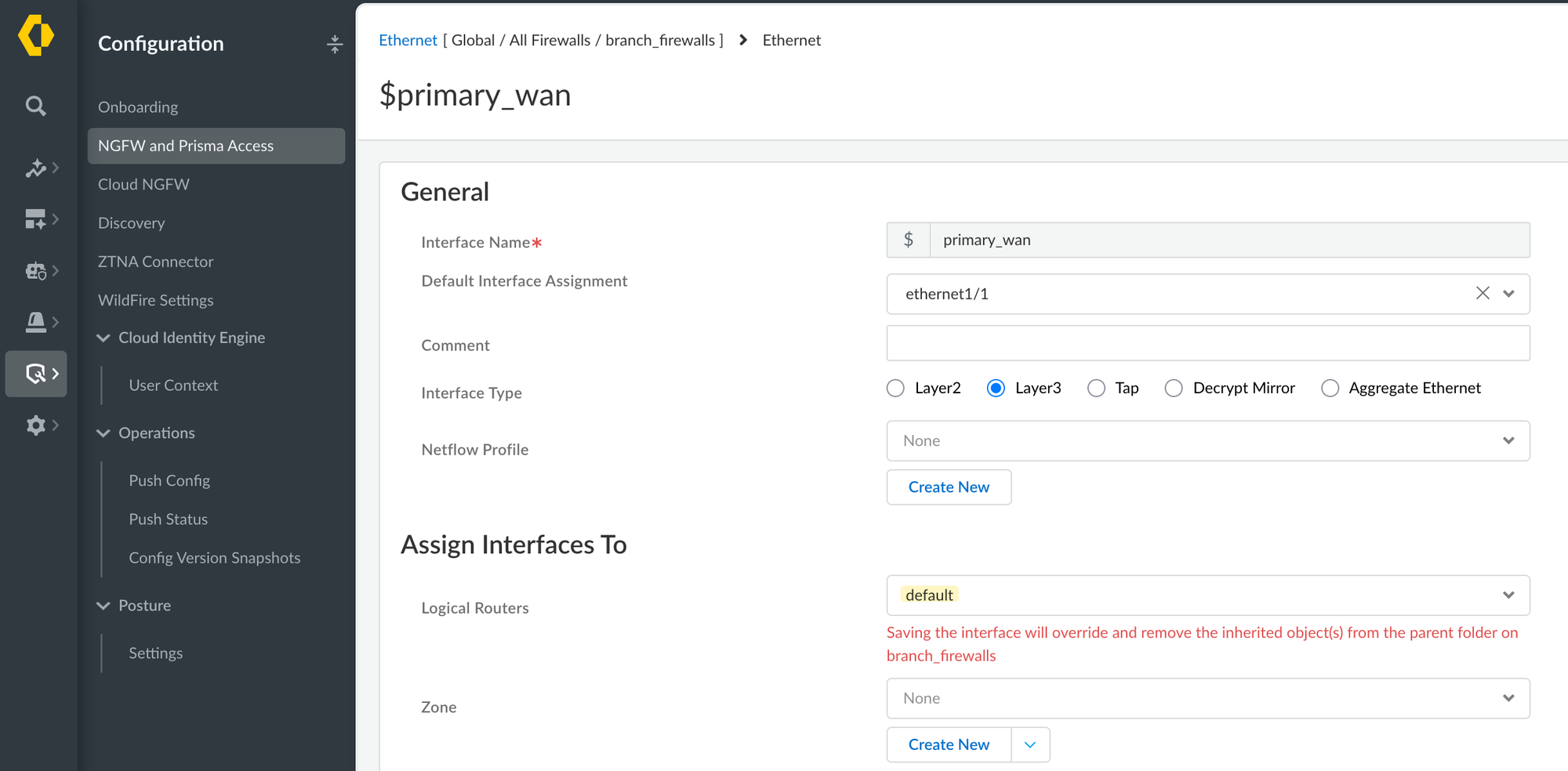
This happens because the default virtual router also holds the list of interfaces that belong to it. So adding $primary_wan to it from branch_firewalls means modifying that list on the shared object itself, which would also affect dc-firewalls and hq since they inherit the same default virtual router.
To avoid that, SCM creates a local override of default specifically for branch_firewalls and adds the interface there instead. This keeps other folders unaffected, but it also means branch_firewalls now has its own separate copy of default that no longer inherits future changes made at all-firewalls.
Snippets
Snippets are another way to reuse configuration in SCM, but instead of being tied to the folder hierarchy, they work more like a reusable block of config you can attach to any folder, regardless of where that folder sits in the structure. You create a snippet once, add whatever objects, policies, or settings you want inside it, and then attach that snippet to one or more folders. Any folder with that snippet attached picks up everything inside it, similar to inheritance from a parent folder, except a snippet isn't limited to a single branch of the hierarchy, you can attach the same snippet to folders that have nothing to do with each other, like both a branch office folder and a DC folder at the same time.
all-firewalls (pre-defined)
├── hq
├── branch-firewalls
│   ├── london-branch
│   └── manchester-branch
└── dc-firewalls
    ├── dc1-firewalls
    └── dc2-firewalls
Now, you cannot attach the same snippet to a folder and its own parent or child in the same hierarchy chain, for example branch_firewalls and london_branch. It only works across folders that sit outside that direct line, like london_branch and manchester_branch, or branch-firewalls and dc-firewalls.
Now, let's say we ended up with this folder structure shown above, and we are configuring a RADIUS authentication profile. Let's assume we want to use the same one for both hq and branch_office. But the way the folder hierarchy is laid out, hq and branch_office don't share a common parent other than all-firewalls itself, and creating the profile at all-firewalls would mean it also gets inherited by dc-firewalls, which we don't want.
So what we can do instead is create a snippet, add the RADIUS authentication profile inside it, and then attach that same snippet to both hq and branch_office. This way, both folders get the exact same profile without duplicating the configuration.
Managing Snippets
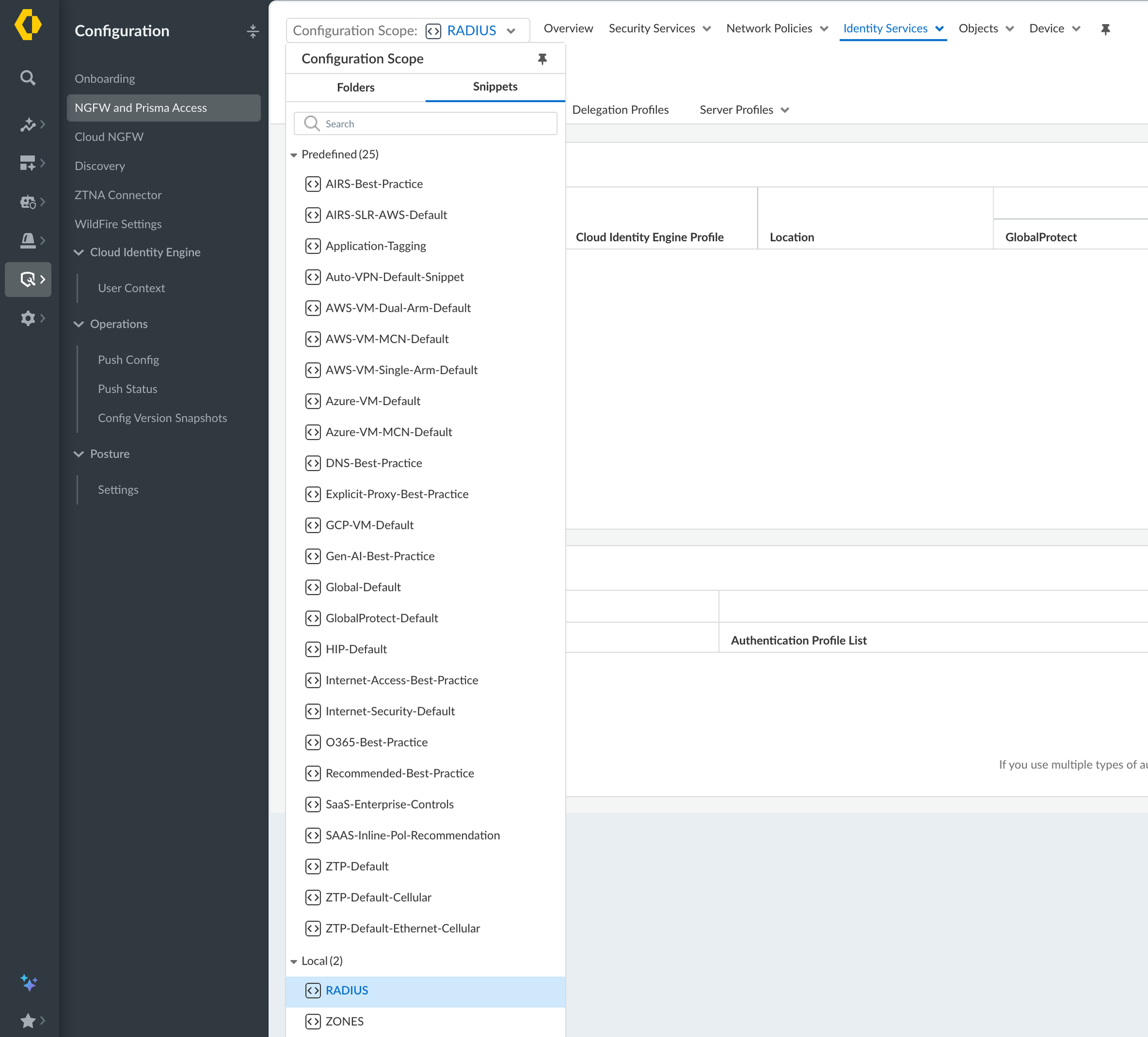
To create a snippet, you first create it (called RADIUS in the example) as its own object, as shown in the first screenshot, where RADIUS shows up under Local snippets alongside the predefined ones like AIRS-Best-Practice or GlobalProtect-Default. You then add whatever configuration you want, in this case an authentication profile, inside that snippet.
To attach it to a folder, go to the folder's Overview page, in this case hq, and you'll see a Configuration Snippets section. From here you can click into Snippets, which brings up a panel where you can add the snippet, RADIUS in this example, to the list.
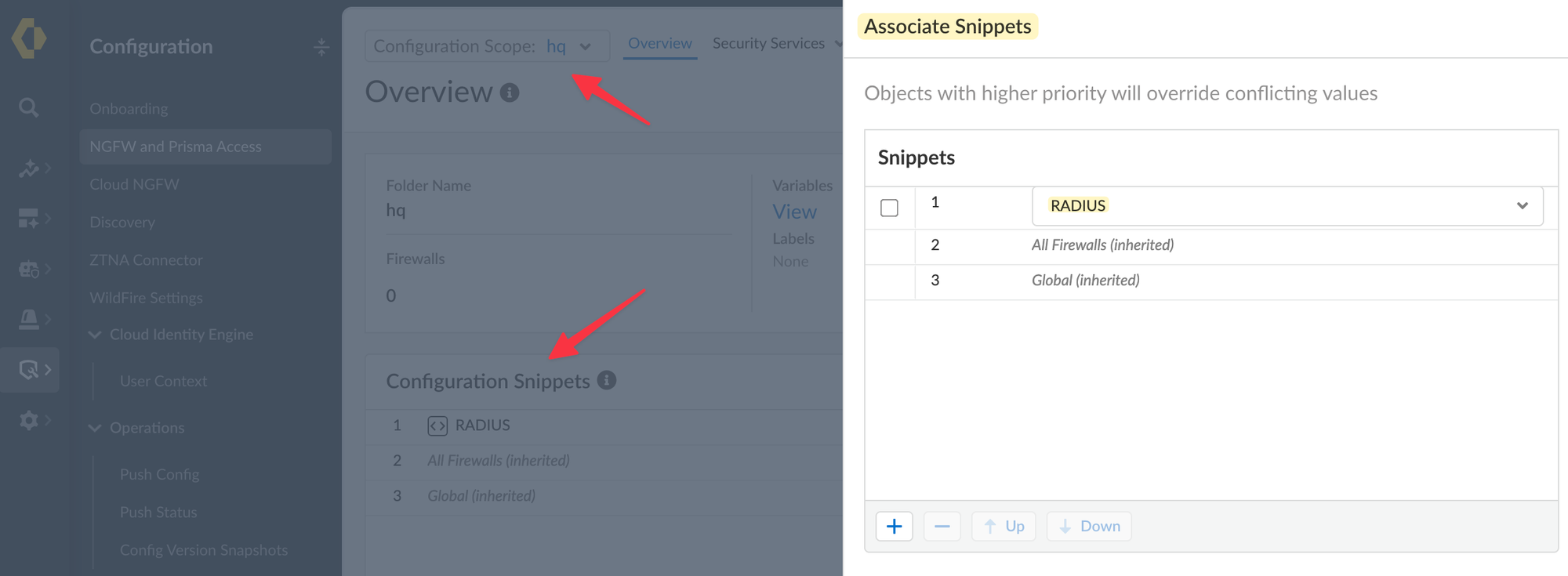
You can also see All Firewalls and Global listed (pre-defined) underneath it as inherited snippets, along with a note that objects with higher priority override conflicting values, so the order you place them in here also matters if more than one snippet defines the same thing.
Once attached, hq's Overview page shows RADIUS listed under Configuration Snippets, confirming it's now applied to that folder, alongside the ones already inherited from All Firewalls and Global.

Config, Commit, and Push
In terms of config management, there isn't much different, though you can't just commit your changes in SCM like you can in Panorama. In SCM, you keep making changes, and when you're ready, you push, which creates a numbered configuration version snapshot. This makes it easy to restore to a previous snapshot number if needed.
So when you go to the snapshots section, you'll see numbers in ascending order. Let's say the last one is 40, this is the last snapshot that was pushed to the devices. The one above 40 is the candidate config, meaning as you keep making changes, they get saved into that candidate. Once you're ready and push, it creates another snapshot, 41, and that becomes the new last pushed version.
Firewall HA
You can manage the HA configuration from SCM as well, but the option to configure HA, called HA Setup, sits under the folder Overview, and it only shows up once you've added the firewalls to a child folder. So if you add the serial numbers of two firewalls to london_branch, for example, the HA Setup option then appears for that folder.
One thing I don't like though is that when you go to configure HA, the dedicated HA interfaces don't show up in the interfaces list until the firewalls have actually onboarded to SCM and connected. I don't really understand why, since SCM already picks up the model from the serial number, so it should be able to auto populate the dedicated HA interfaces without waiting for the firewall to connect. As of writing this post (September 2026), you need to make sure the firewall has connected to SCM first, then configure HA and push, which is a bit annoying.
PAN-OS Upgrades from SCM
This is one of the most frustrating experiences for me, but let's look at how to schedule the upgrade first, and then I'll vent.
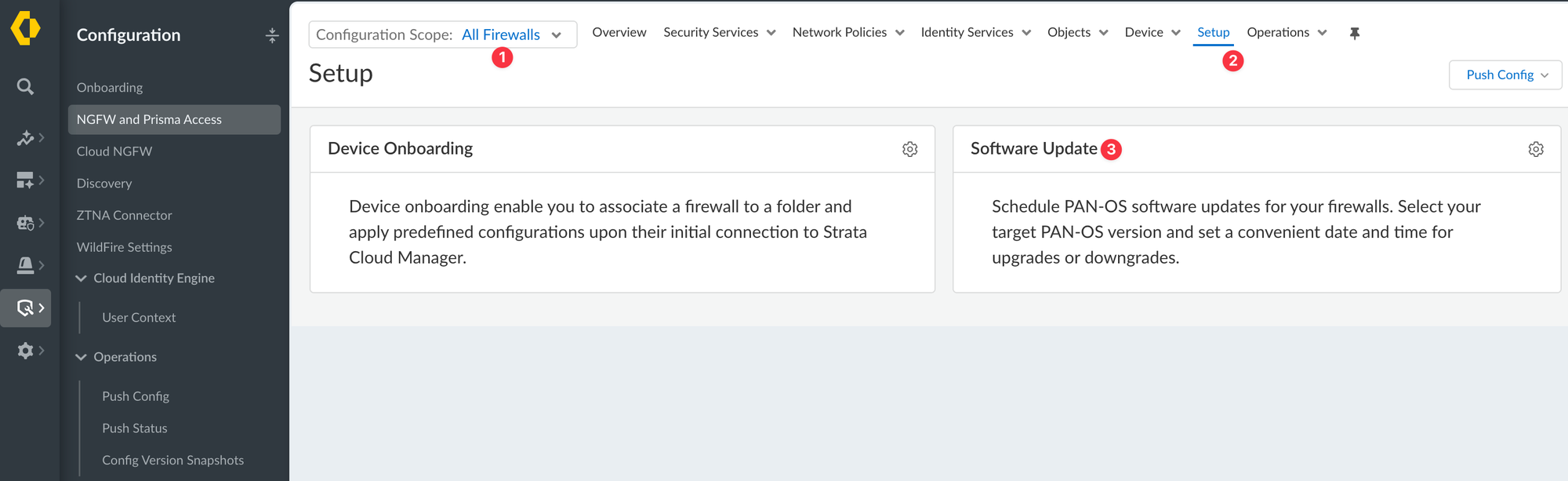
You need to go to the all-firewalls folder and select Setup, and the Software Update option to shows up there.
Here you can schedule an upgrade by specifying the time, target version, and selecting the firewalls.
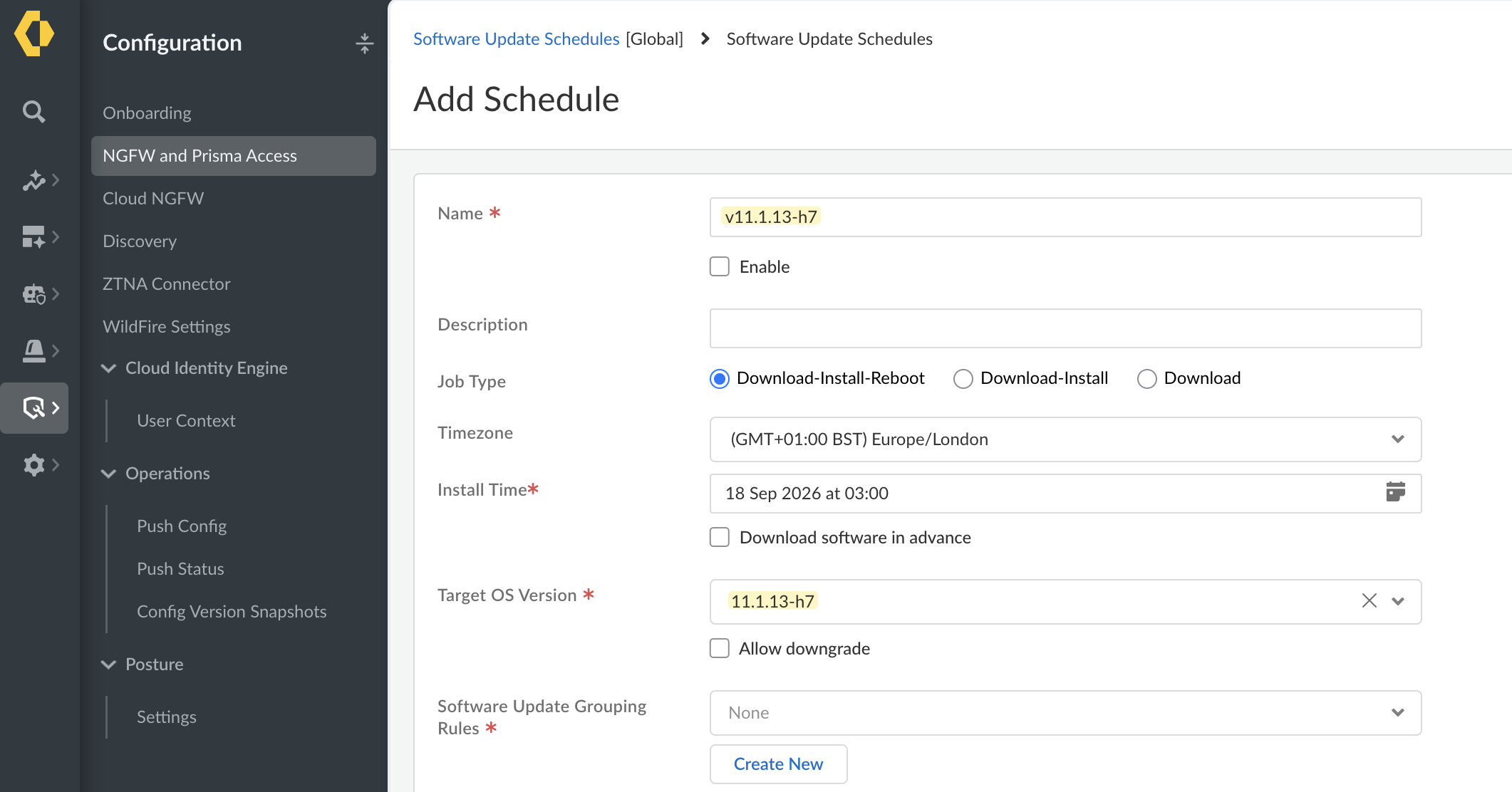
When the time comes, the firewall runs pre-checks, downloads the software image, updates content, upgrades, and runs post checks. Seems perfect, right? Well.

Naturally, you would select both firewalls in an HA pair and assume SCM should be clever enough to upgrade the passive one first. But it just runs the upgrade on both firewalls at the same time. I don't understand how this went past QA. Palo Alto has all the money and resources but couldn't find a way to upgrade one firewall at a time. Fortigate, for example, has been able to do this for years.

Minor Improvements I'd Like To See
In the firewall or Panorama, you get an in-page refresh button on most pages, which just reloads the data on that specific page without reloading the entire interface. This is missing in SCM, the only place I've seen it is in the Push Config section, everywhere else I have to refresh the whole page, which is slower and loses your place in the UI.
Another one is, on the firewall or Panorama, you can select most objects and see where they are referenced using the global search feature. This isn't available in SCM, which is a big letdown when you're trying to figure out if an object is referenced anywhere.
Also, not all configuration options are available yet. For example, User-ID related settings like group mapping to an LDAP server, or adding Terminal Server agents, aren't there. I understand Palo Alto wants to push people towards Cloud Identity Engine instead, but I'd still like to see 100% feature parity with Panorama.
Automation Options
I see very good coverage for the API, and they also have a solid Terraform provider with a repo that is actively maintained, which is great for automation needs. I believe they also have a good Ansible collection, but I haven't tried Ansible with SCM yet.